14 Results and the count report
For the owner and approvers
- What a completed count’s Result tells you.
- What’s in the count report, and how to share it.
- How the Count tab keeps the record of every count.
14.1 The idea
Once a count is completed, it becomes a record: what was counted, what was found, what changed, who counted and who approved, and why. That record can’t be edited. Jholok shows it on screen as the count’s Result, and can print it as a count report, a PDF to keep with the shop’s accounts or show an auditor or insurer.
14.2 In the app
The Result
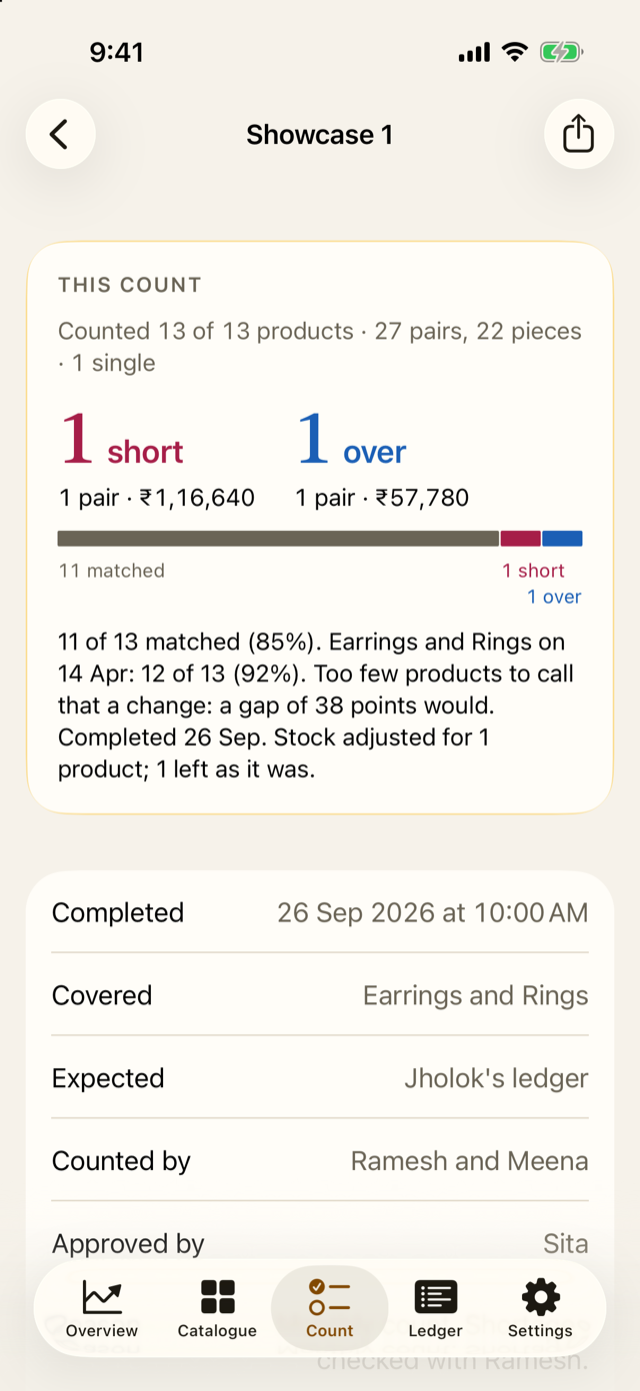
Open a completed count from the Count tab. The card at the top leads with what was counted, then what was short and over, in units and at cost. The sentence ends with what changed: for the demo’s count at Showcase 1, “11 of 13 matched (85%)… Completed 26 Sep. Stock adjusted for 1 product; 1 left as it was.”
Below it:
- when the count was completed, and what it covered;
- where expected stock came from (Jholok’s ledger, or the books);
- who counted, and who approved and why;
- the count’s part of the activity log, and whether it’s intact.
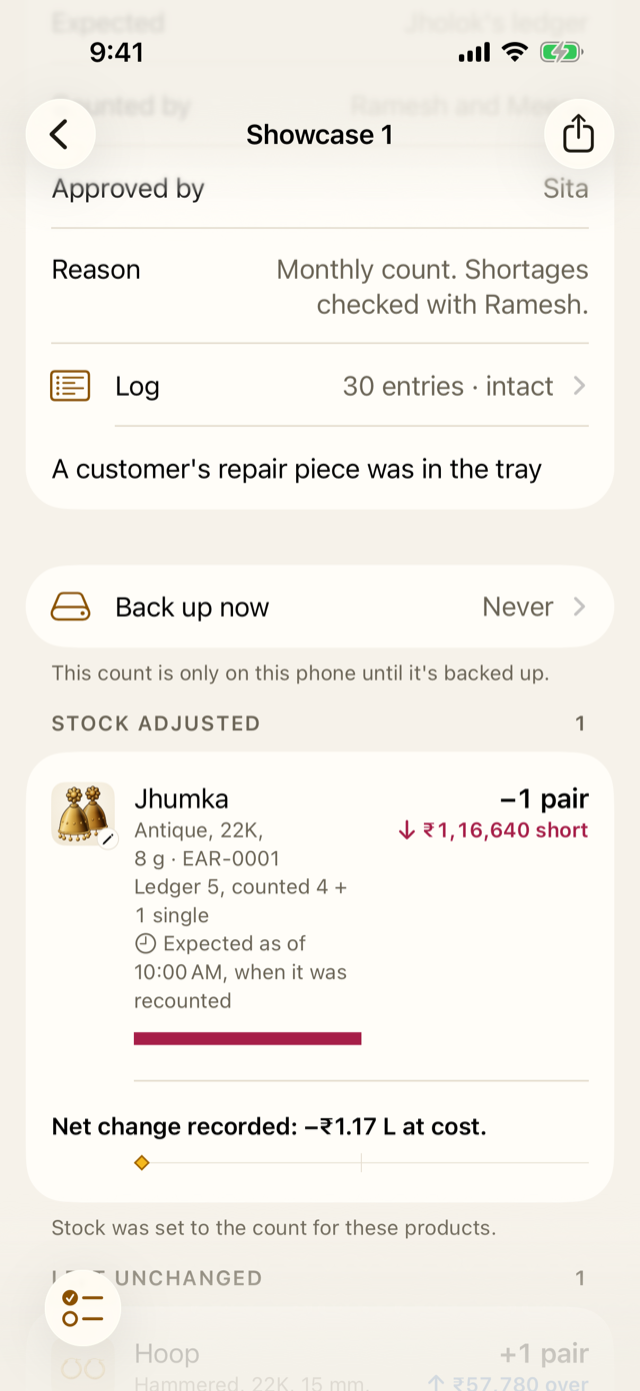
If the phone hasn’t been backed up since, a reminder says “This count is only on this phone until it’s backed up” (chapter 15).
Then the lists:
- Stock adjusted and Left unchanged;
- where they apply, the tags not found or found outside the books (Chapter 11), what was off the shelf (Chapter 12), single earrings found, and pieces not in the catalogue (Chapter 10);
- entries made after completion;
- products not counted, and the products that matched.
Share the report
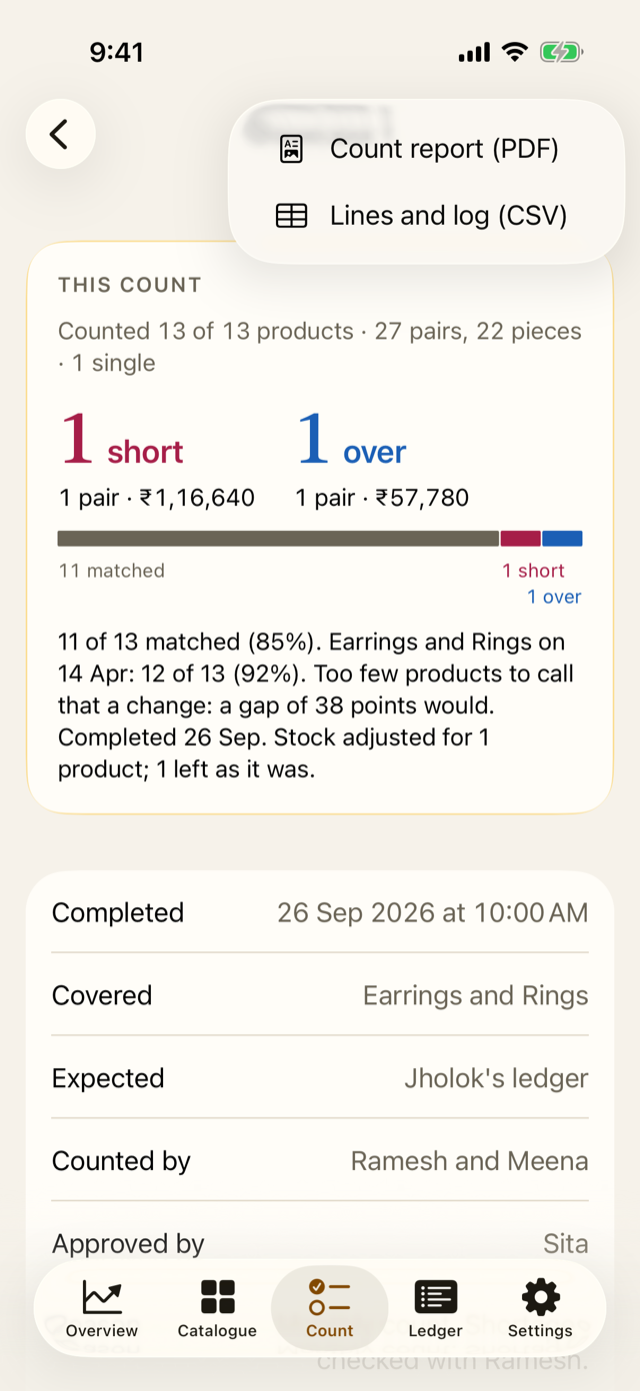
Tap the Export button at the top and choose:
- Count report (PDF): the full report, for printing or keeping;
- Lines and log (CSV): every line of the count, and its log, for a spreadsheet.
The owner confirms each time, with Face ID or the owner PIN (until People is set up, Face ID or the phone’s passcode). The first time, Jholok asks for the shop’s name and address, to print at the top. The files are made only for sharing: once the share sheet closes, Jholok deletes its copies.
Settings → Export also has Count results: every line of every completed count, in one spreadsheet. While a count is open, exports that would show its stock wait until it’s reviewed or discarded.
The record of every count
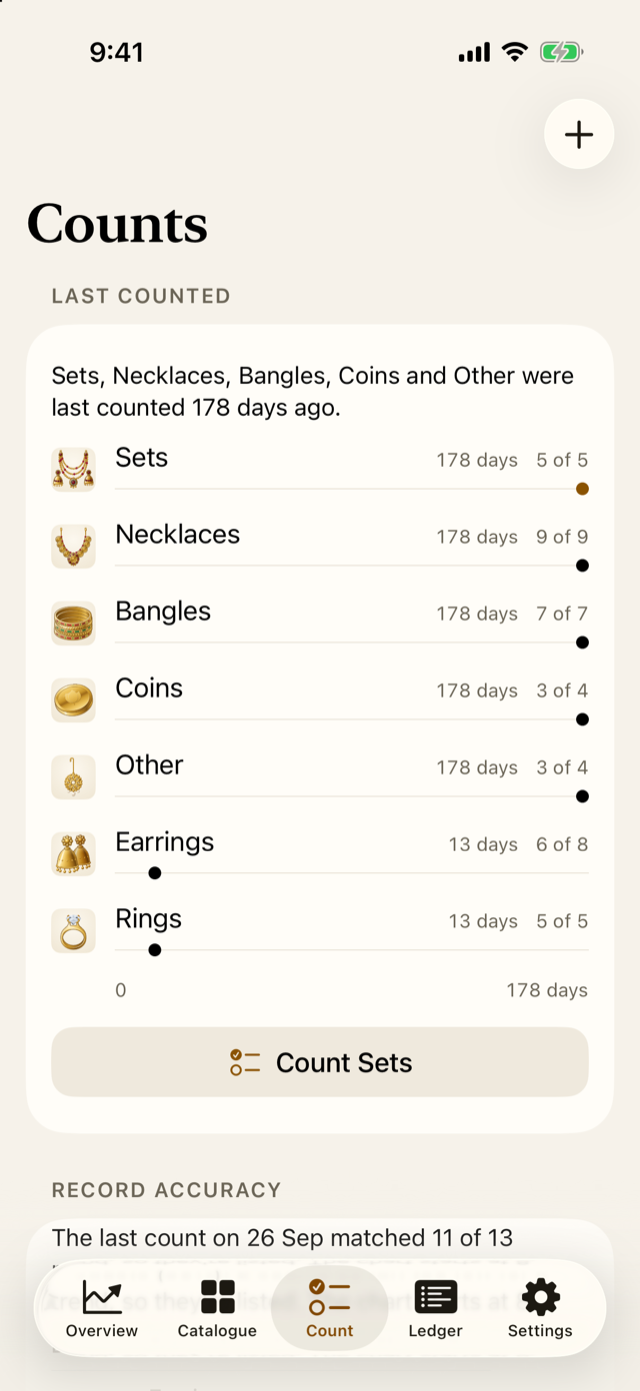
The Count tab keeps score. Under Last counted, each type shows how long since it was counted. Under Record accuracy, every completed count is listed with how many products matched and what was short and over. With fewer than 8 counts, it’s a table; from 8, a chart shows each count’s match rate, with the range chance allows.
14.3 What’s in the report
The report is printed in black and white, on A4, so it copies and files well.
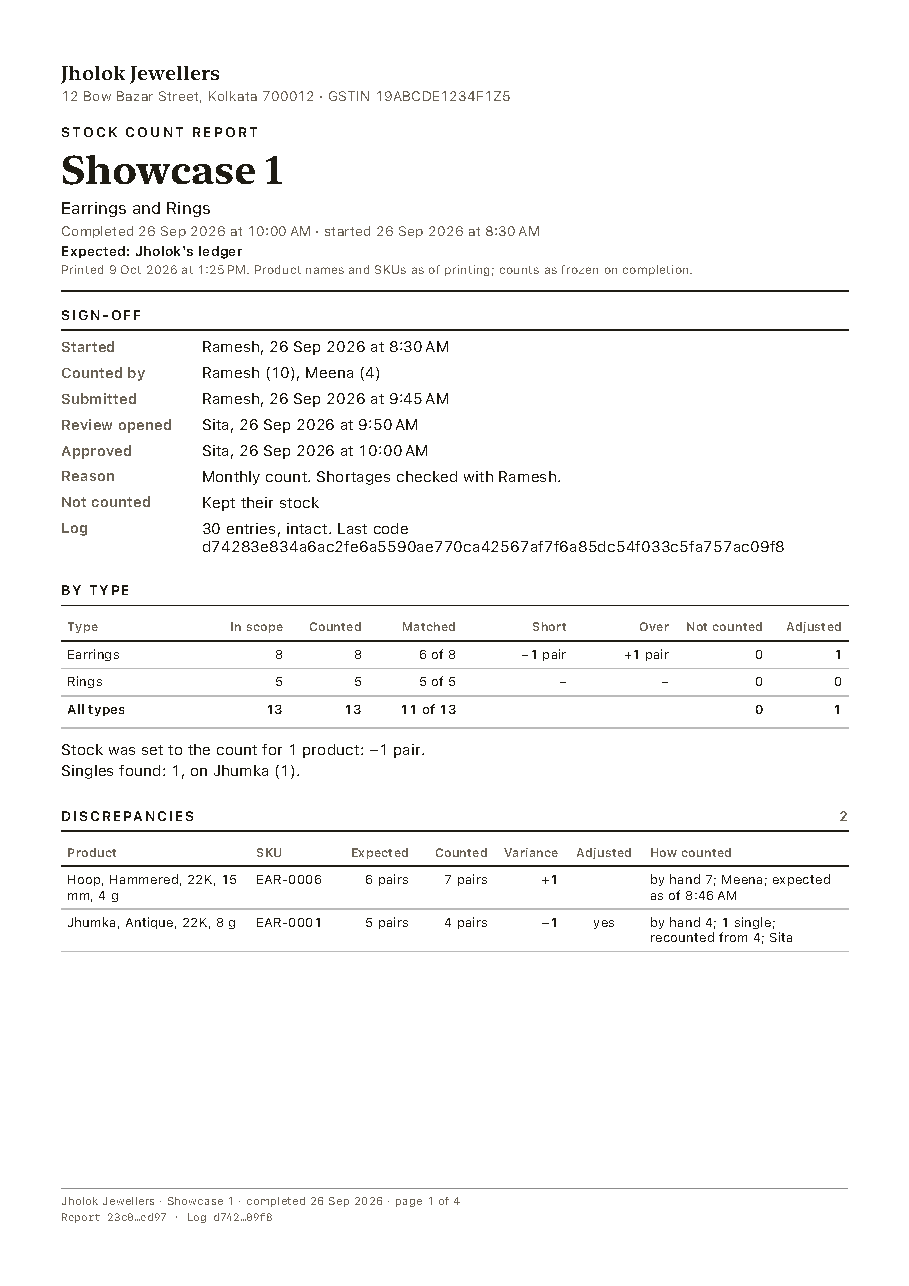
- The first page: the shop’s name and address; the count’s place, types and times; what expected stock came from; the sign-off (who started, counted, submitted, reviewed and approved, and the reason); the log’s code; totals by type; and the discrepancies, each with how it was counted.
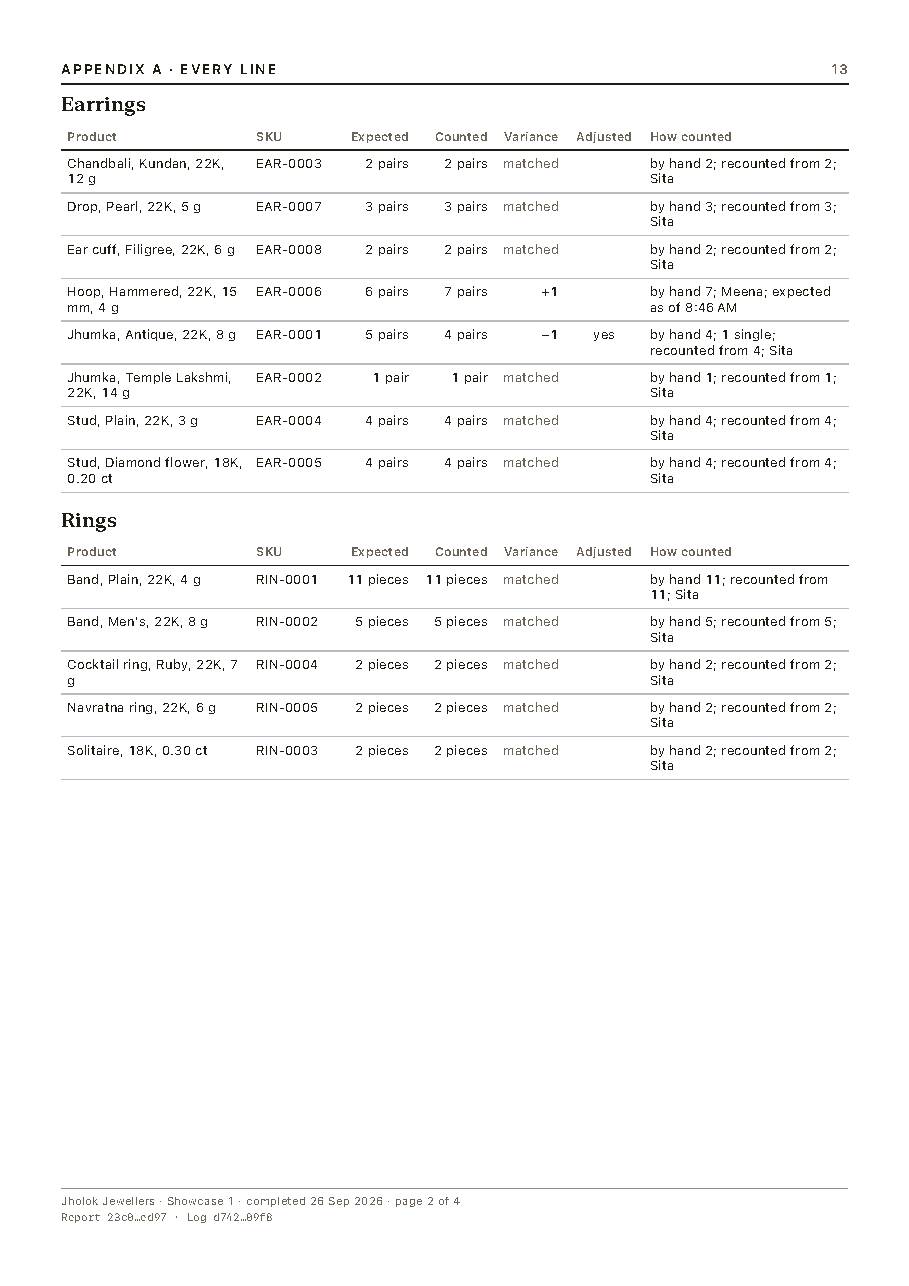
- Every line of the count, grouped by type.
- Where they apply: the tags, what was off the shelf, customers’ pieces, pieces not in the catalogue, and entries made after completion.
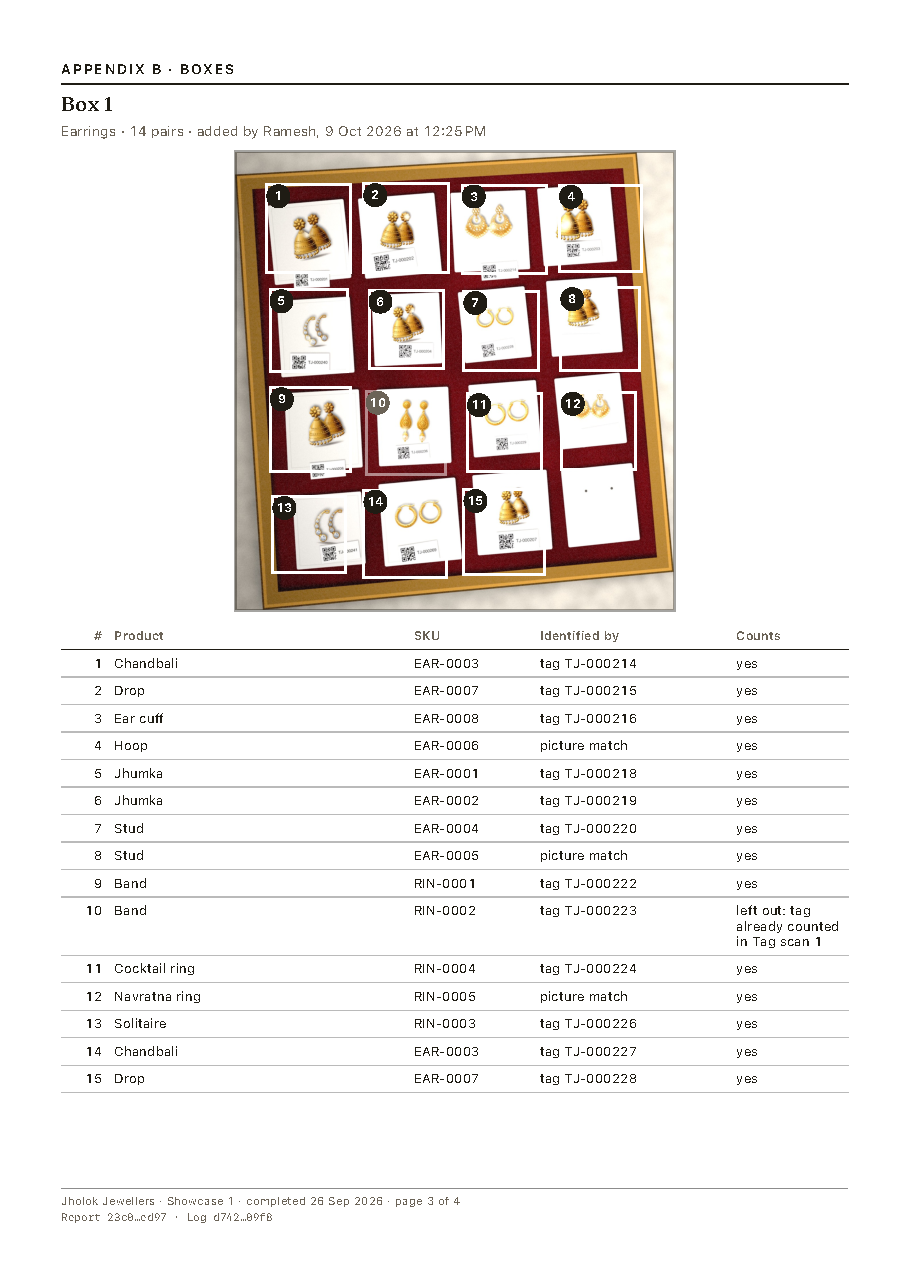
- A page for each box photo, with its pieces numbered and a table of what each was and how it was identified, and each tag scan’s tags.
Every page carries the report’s fingerprint at the bottom: a code made from everything in the report. Printing it again gives the same code, unless a product was renamed, the shop’s name or address changed, or entries were made after the count was completed; then the report says so. Making a report is logged, with its fingerprint.
The report gives quantities, not rupee values.
14.4 Why it works this way
- A completed count is a record, not a draft. Its counts and numbers can’t be edited, so a report printed next year shows the same count.
- The fingerprint shows the paper is genuine. Print the report again from the app and compare the codes: if the paper was altered, they won’t match. (A renamed product or a late entry also changes the code, and the new report says so.)
- Exports ask the owner every time, because a report shows the shop’s stock, and once a file leaves the phone, Jholok can’t take it back.
- Accuracy is shown honestly. No percentage on fewer than 10 products, and no “better” or “worse” unless the difference is bigger than chance.
14.5 How it works
Completing a count freezes its counts and numbers. Product names and SKUs are printed as they are on the day (the report says so), and entries made after completion are added. The fingerprint is a code worked out from everything in the report except the time it was printed. The log’s code on the report is the code of the count’s log as it was at completion: if anyone altered the log, the report would say so.
14.6 Try it
The demo shop has completed two counts. The Count tab’s record would list them like this:
| Date | Covered | Matched | Short | Over |
|---|---|---|---|---|
| 14 Apr | Whole shop | 39 of 42 | 1 pair and 1 piece | 1 piece |
| 26 Sep | Earrings and Rings | 11 of 13 | 1 pair | 1 pair |
With two counts, the record is a table: too few to draw a trend.
Question. An insurer asks for proof of your last stock count. What do you send, and how can they tell it hasn’t been changed?
TipAnswer
The count’s report, from Export → Count report (PDF). Every page carries its fingerprint: printing the report again from the app gives the same code, as long as nothing was renamed or entered late, and the report says when something was.
- A completed count’s numbers can’t change.
- The report shows the sign-off, totals, discrepancies, every line and every box photo, with a fingerprint on every page.
- Every export asks the owner first, and Jholok deletes its copy once it’s shared.
- The Count tab keeps the record of every count.