13 Submit, review and complete
For approvers
- How to open a count’s Review, and who may.
- How to read Review, recount, and choose which differences to accept.
- What completing a count does, and how to sign it.
13.1 The idea
When the counters submit a count, it waits for an approver. The approver’s job is to look at what was found, check anything doubtful, and decide which differences become changes to the stock. Until the count is completed, nothing has changed.
Review is where the expected numbers appear for the first time, so only an approver or the owner who didn’t count in it may open it (Chapter 4). The owner may approve a count they counted in only when nobody else can. It starts with safe choices already made:
- A shortage must be recounted before it can be accepted. Its numbers stay hidden until then, and the recount is blind.
- Overs start unticked. An over usually means a missing record: enter that instead.
- A product whose stock moved during counting and matches nothing must be recounted too (Chapter 12).
- Products nobody counted keep their stock, unless the approver chooses Set to zero.
The approver can change the ticks, but can’t accept a shortage that hasn’t been recounted. These rules are built into the app, not just the screen.
13.2 In the app
Open Review
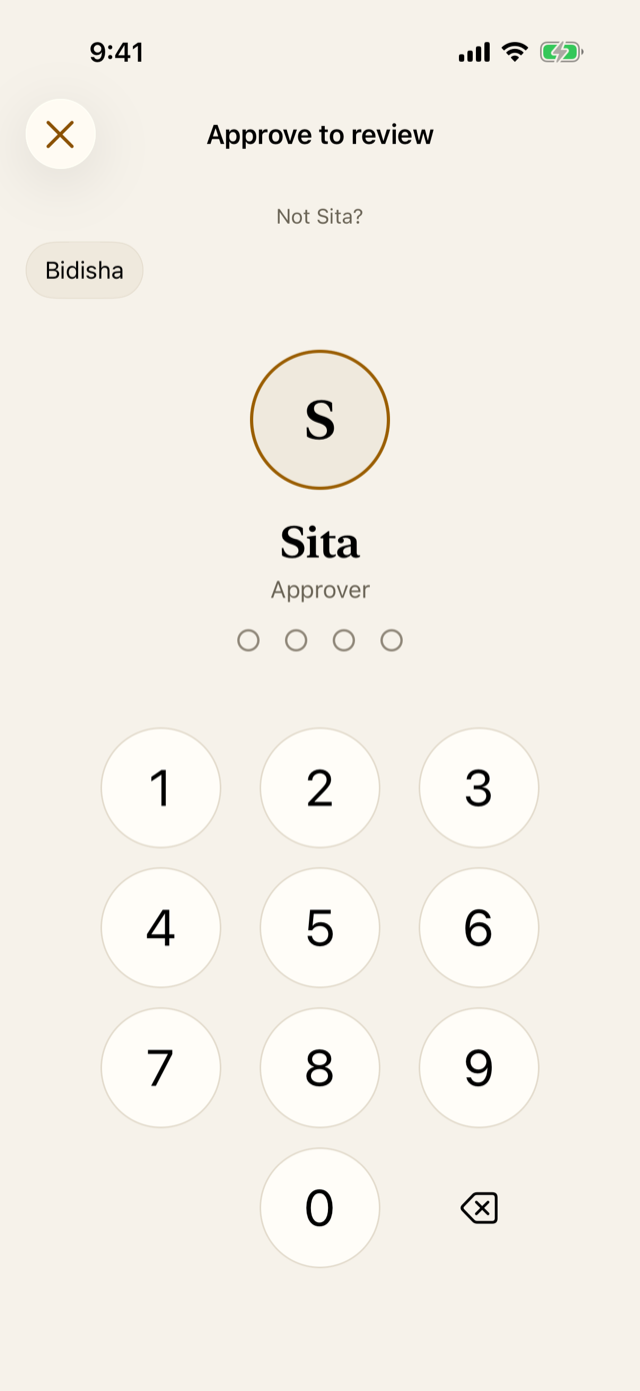
Open the submitted count from the Count tab and tap Review. The app asks for an approver’s PIN. Only people who may approve are offered; those who counted are named as unable to.
If the count was loaded with the books, and counting went on more than half an hour after the time they’re from, the app warns first (Chapter 11).
Read Review
The card at the top says what was counted and how it compares:
- how many products were counted, and in what units;
- how many were short and over, in units and at cost;
- a sentence: how many matched, what happens to those not counted, and how this count compares with the last count of the same types.
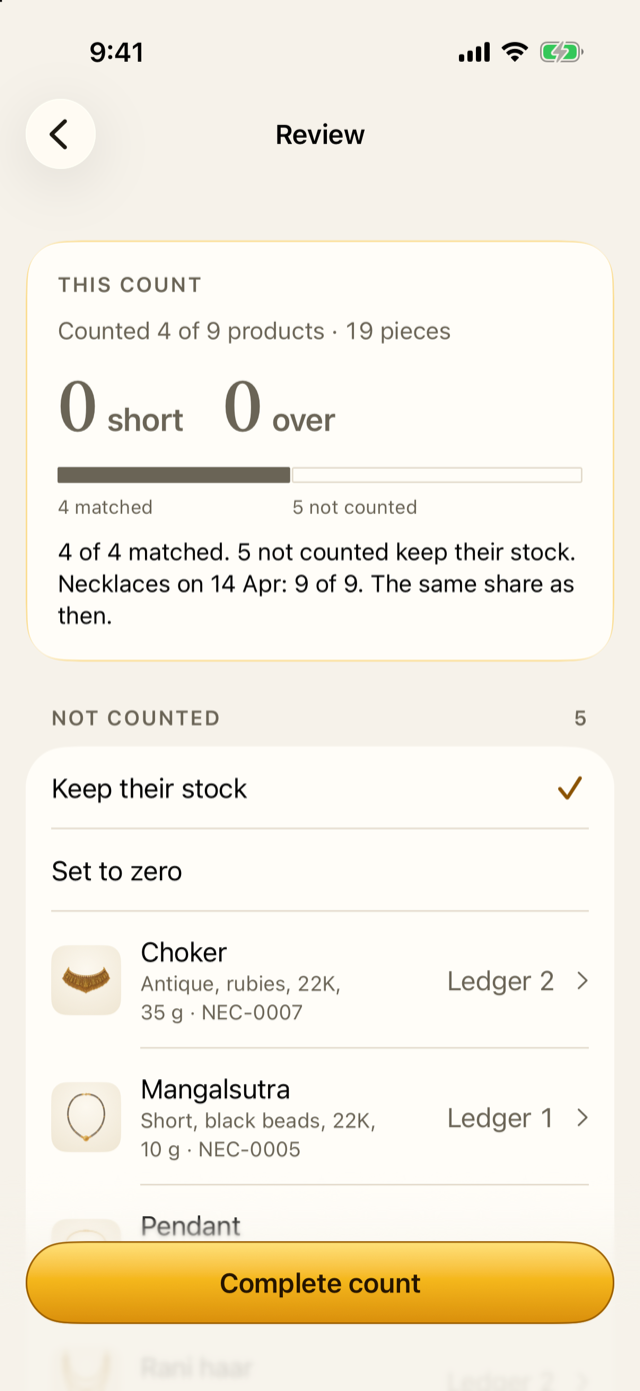
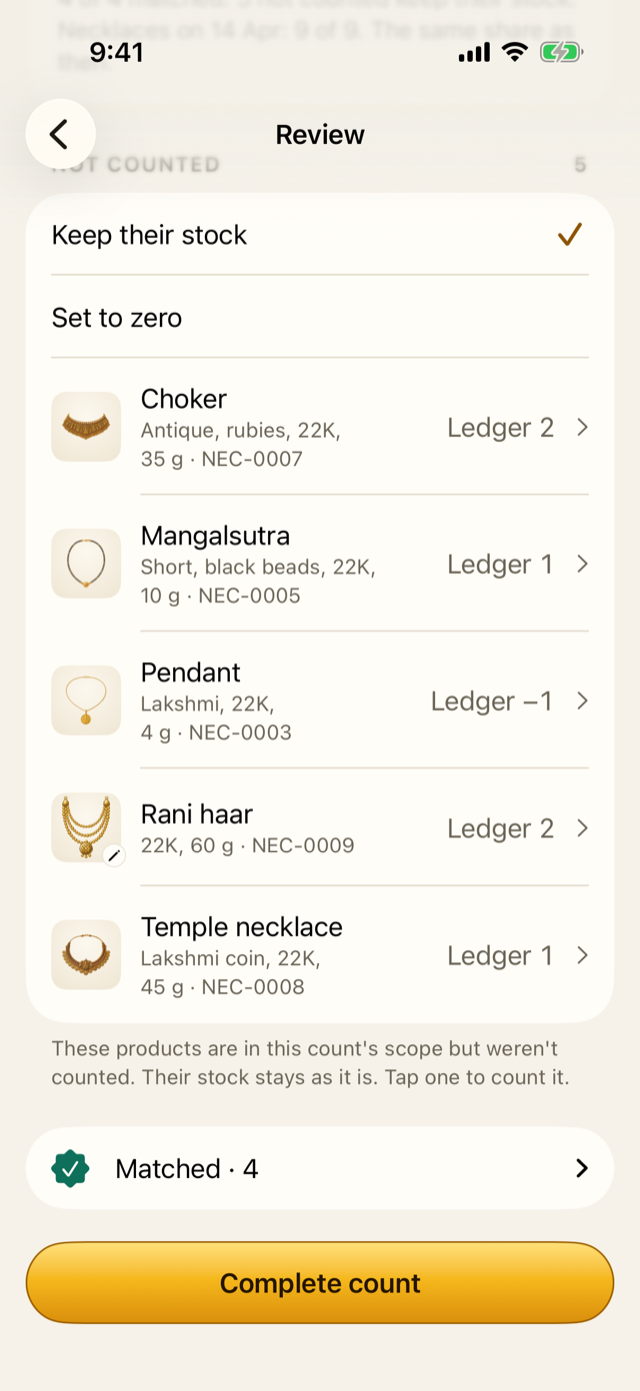
Below it come the sections:
- Not identified: box photo pieces nobody has identified. The count can’t be completed until a counter identifies them (Chapter 10).
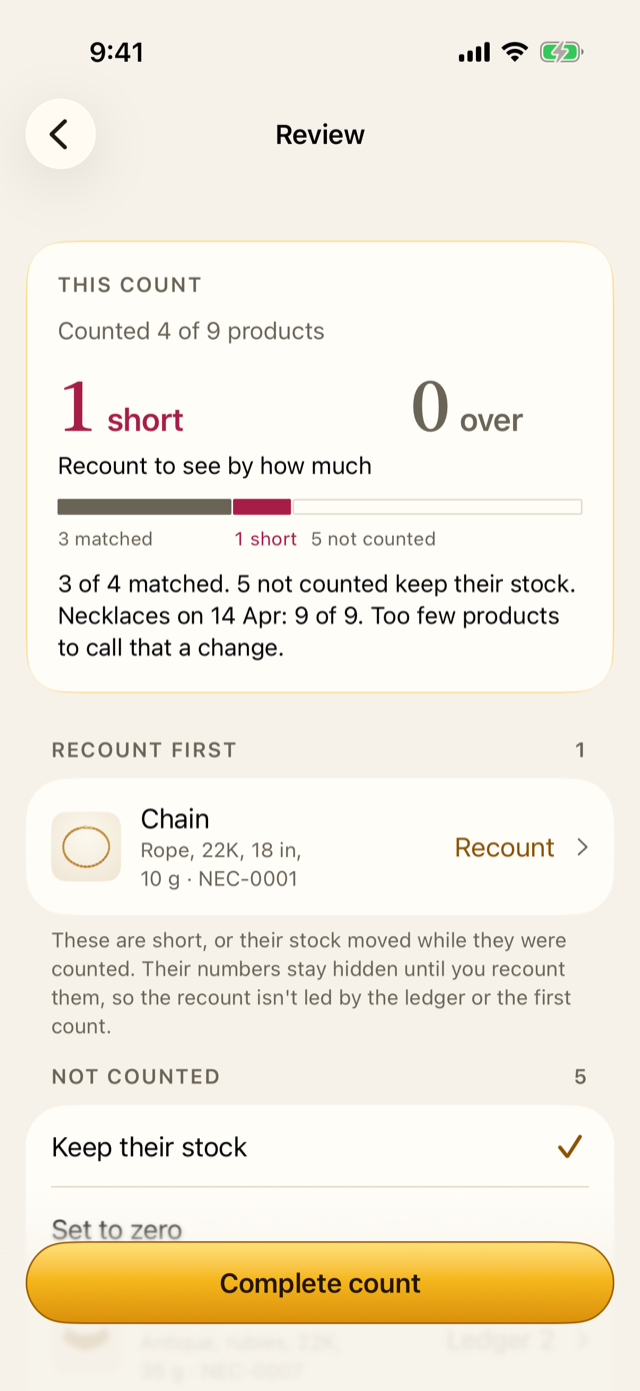
- Recount first: shortages, and products whose stock moved, with their numbers hidden.
- Discrepancies: every other difference, each with its tick, the ledger and counted numbers, and the value at cost. The line at the end says what completing would change, such as “Net if completed: −₹1.29 L at cost.”
- Not counted: products in the count that nobody counted, with the choice Keep their stock or Set to zero.
- Matched: folded away.
Recount
Tap a product under Recount first to recount it. The recount is blind: the first count and the ledger stay hidden until you tap Done. The app keeps the first count and when the recount happened, even if the recount confirms it.
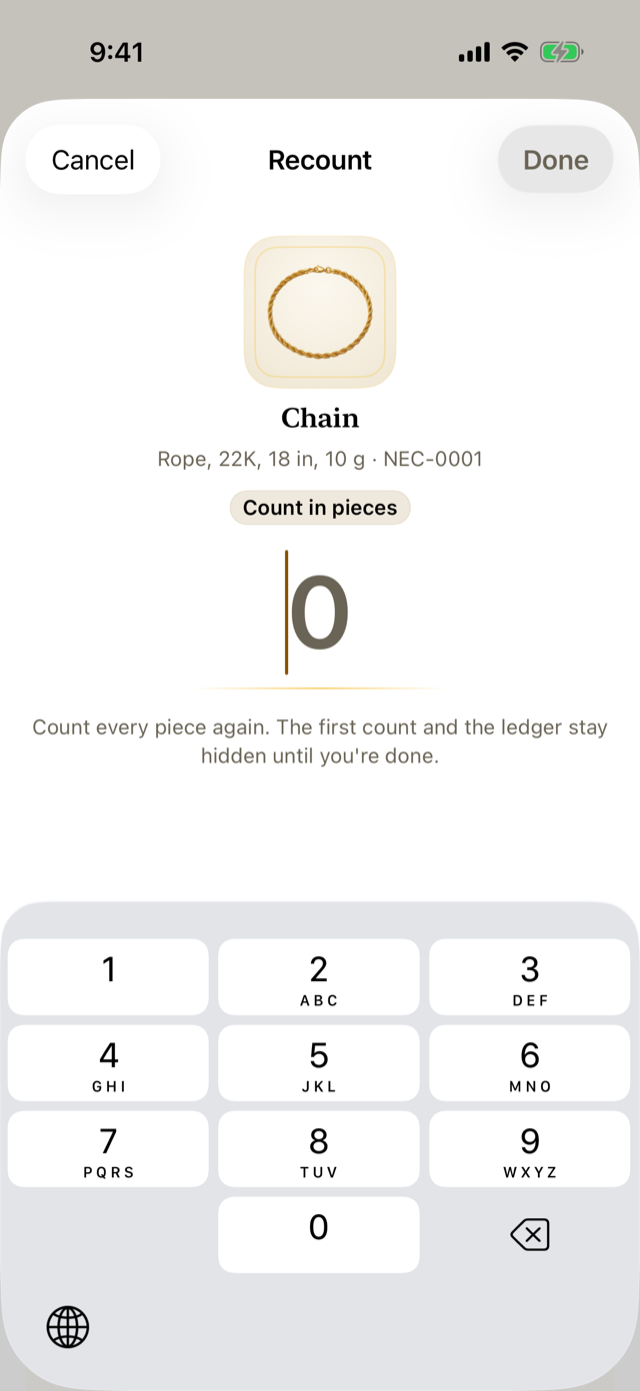
You can recount any line under Discrepancies or Not counted by tapping it.
Choose, then complete
Tick the differences to accept. A ticked line sets stock to the count; an unticked one leaves the stock as it is. Then tap Complete count, or Complete and adjust 3 when three lines will change.
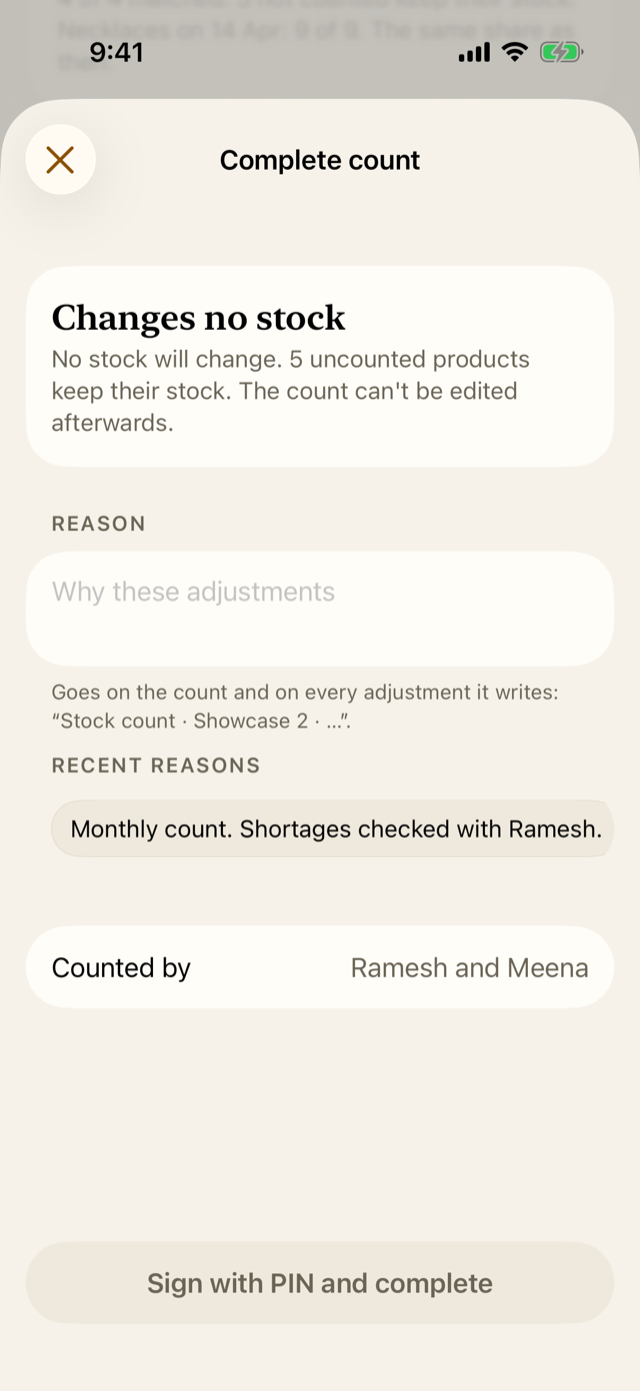
The sheet says what will change, and what won’t. Give a reason: it goes on the count and on every adjustment it writes, as “Stock count · Showcase 1 · your reason”. Recent reasons are offered to tap. Then Sign with PIN and complete.
If the count needs more counting, close Review and tap Reopen for counting on the count, with a reason. The log records that anything counted after Review was counted after it.
13.3 Why it works this way
- A second person decides. The approver didn’t count (unless the owner is the only one who can approve, and the count then says so), so a loss can’t be counted away and approved by the same person.
- A loss someone counted is never accepted on one count. The recount is cheap; a wrong write-off isn’t.
- Hidden until recounted. A recount that can see the ledger tends to find the ledger’s number.
- The reason is written on every adjustment, so the ledger says why each change happened.
- The PIN is a signature. The count records who approved it, and the log can’t be edited afterwards.
- Comparisons are honest. Review says a match rate rose or fell only when the change is bigger than chance would give, with at least 10 products on each side. Otherwise it says “Too few products to call that a change.”
13.4 How it works
Completing is one change, saved at once: if anything fails, nothing changes and the count stays open. Jholok freezes every line’s expected and counted numbers, cost, cut-off and stock off the shelf, so the count reads the same forever. For each ticked line it writes a count adjustment movement for the difference, signed by the approver, with the reason. It records who approved, when and why, and logs the completion.
A completed count can’t be edited. Mistakes found later are put right with new movements, or a new count.
13.5 Try it
The demo’s open count, at Showcase 2, covers the necklaces. Its Review card would say: counted 4 of 9 products · 19 pieces; 4 of 4 matched; 5 not counted keep their stock. The last count of the necklaces was the whole shop count on 14 Apr: 9 of 9. Both are every product matched, so Review says “The same share as then.”
At the earlier count at Showcase 1, the approver recounted the short jhumka, found it still short, and ticked it. The hoops that were over, because of a customer’s repair piece, stayed unticked. The counter had also found one single jhumka earring: Review showed it beside the pairs, as “+ 1 single”, and it changed no stock. Completing wrote one count adjustment:
| Product | Change | At cost | Note |
|---|---|---|---|
| Jhumka, Antique, 22K, 8 g | −1 | −₹1,16,640 | Stock count · Showcase 1 · Monthly count. Shortages checked with Ramesh. |
Question. A product shows 2 short. You want to accept it, but its tick won’t turn on. Why?
TipAnswer
It hasn’t been recounted. Tap it under Recount first, count it again blind, and tap Done. If it’s still short, it moves to Discrepancies, already ticked.
- Only an approver or the owner who didn’t count opens Review and completes.
- Shortages, and products whose stock moved, are recounted blind first.
- Overs start unticked; products not counted keep their stock unless you choose Set to zero.
- Give a reason and sign with your PIN. Completing changes stock only for the ticked lines, and the count can’t be edited afterwards.