8 A count from start to finish
For counters
- How to start a count, and choose what it covers.
- How to count each product quickly, with one hand, and put mistakes right.
- How to submit the count when you’re done.
8.1 The idea
Chapter 3 explained why counts matter. This chapter is the counter’s side: the steps on the phone, from starting a count to handing it over for review.
Three things are worth knowing before you start:
- A count can be small. It can cover the whole shop, a few types, or the pieces in one showcase. Smaller, more frequent counts find problems sooner.
- You count blind. Nothing on the counting screen shows how many there should be. While the count is open, the rest of the app hides the stock of the types being counted too.
- Every tap is saved at once. If the phone rings or the app closes, the count is still there when you come back.
8.2 In the app
Start a count
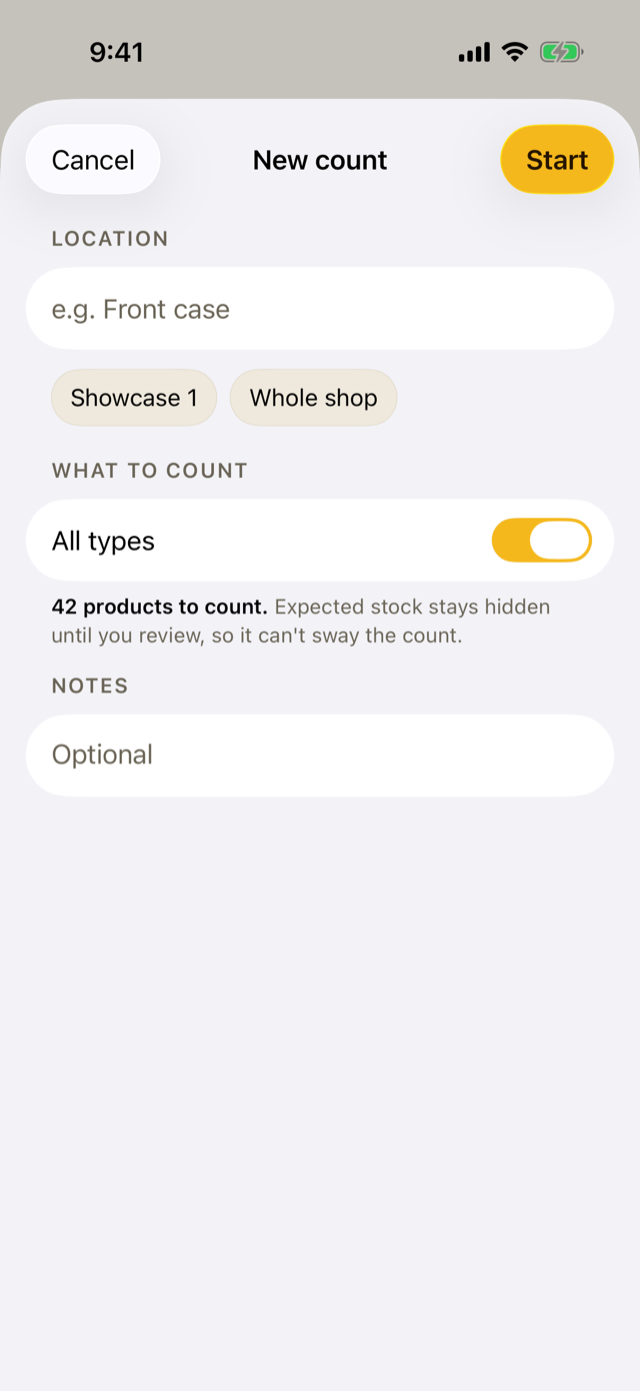
In the Count tab, tap New count (the + at the top).
- Location: where you’re counting, such as “Front case”. The places used in recent counts are offered below the field, so you can tap one.
- What to count: leave All types on to count everything, or turn it off and tick the types you want. Each type says when it was last counted.
- Notes: anything the approver should know. It’s optional.
The line under the types says how many products the count covers, and reminds you that “Expected stock stays hidden until you review, so it can’t sway the count.” Tap Start.
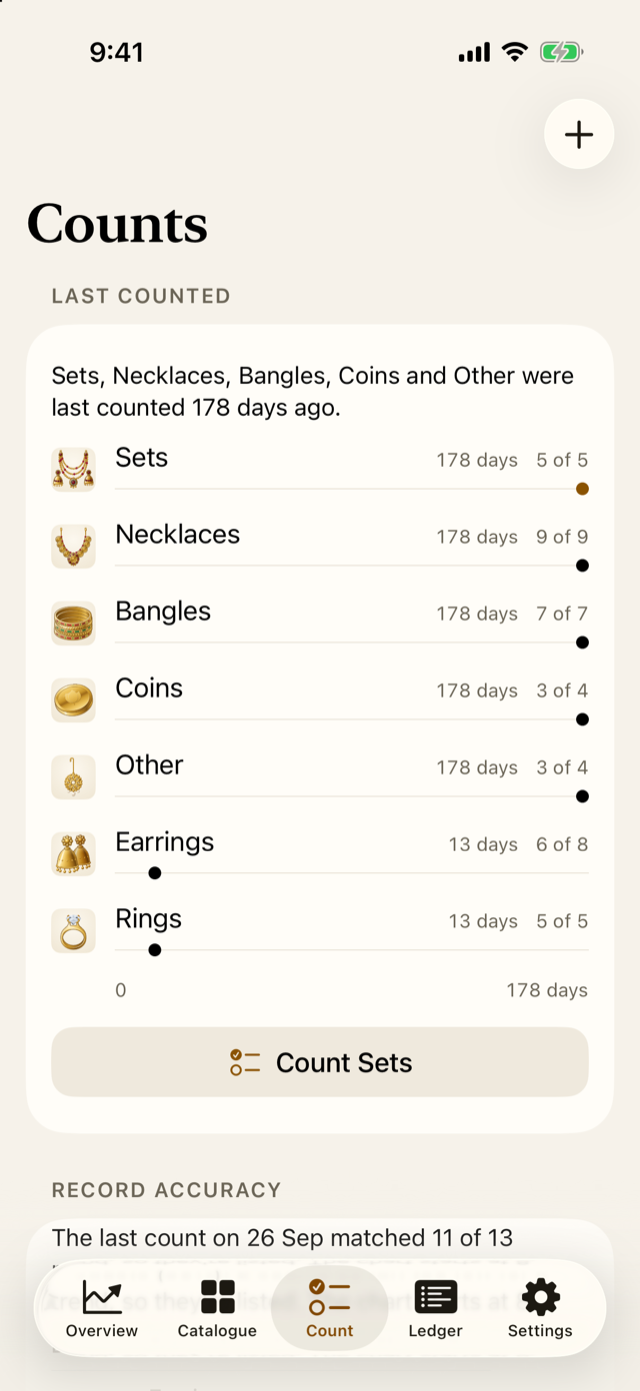
The Count tab also suggests what to count next: under Last counted, a button such as “Count Sets” opens a new count of the type that has gone longest without one.
Say who’s counting
If the owner has set up People (Chapter 4), the app asks Who’s counting? Choose your name if it isn’t already chosen, and enter your PIN.
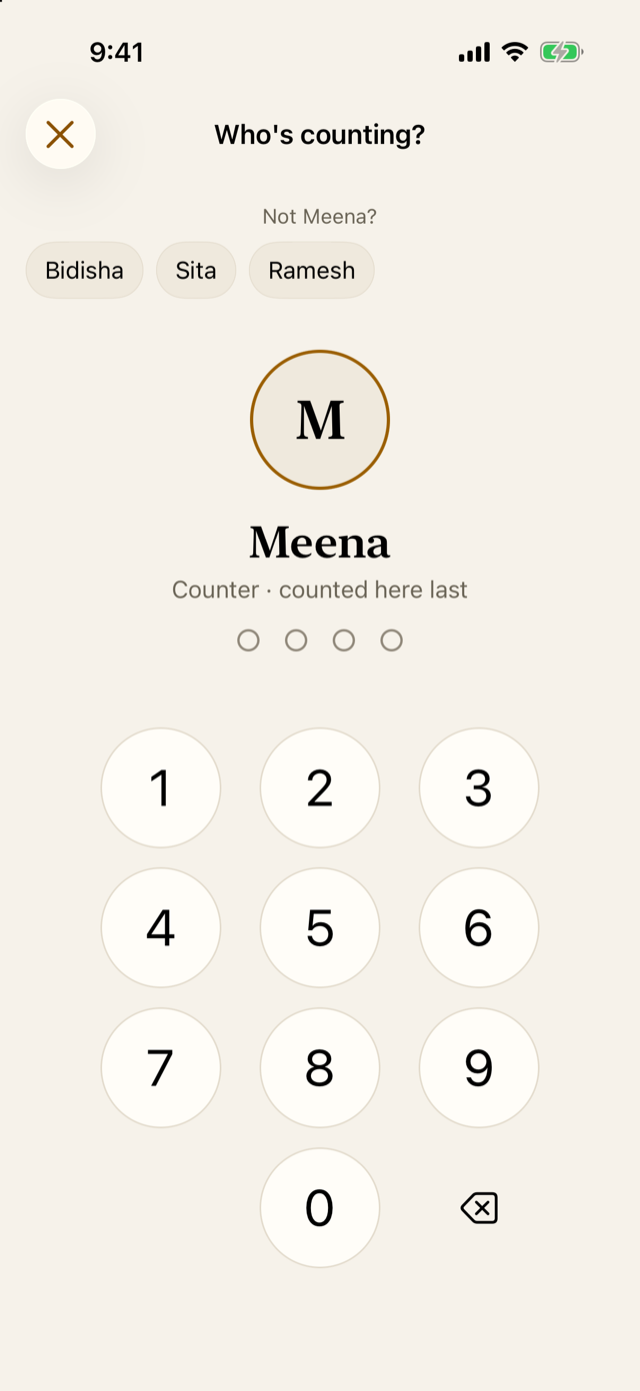
You stay signed in while the count is open, even if you leave the app for up to 15 minutes. After that, or if you go back to the list of counts, the app asks again, with your name already chosen. Several people can count in one count: each signs in with their own name, and the count lists everyone who counted.
Count each product
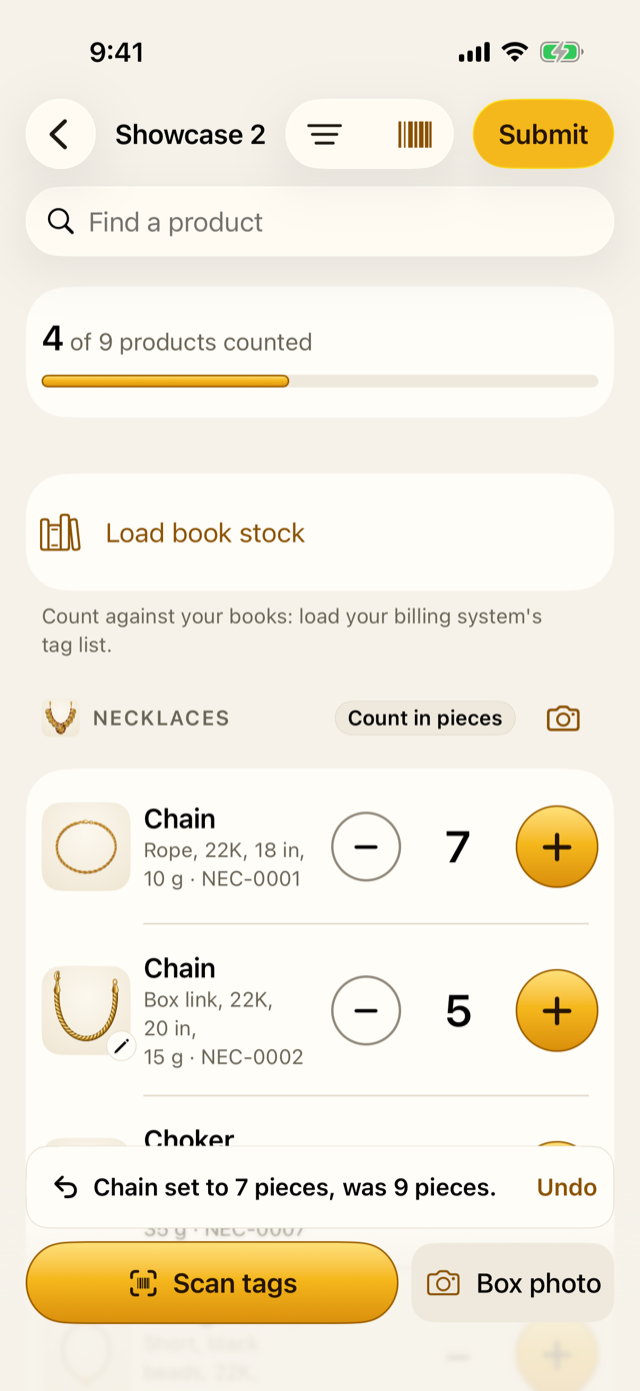
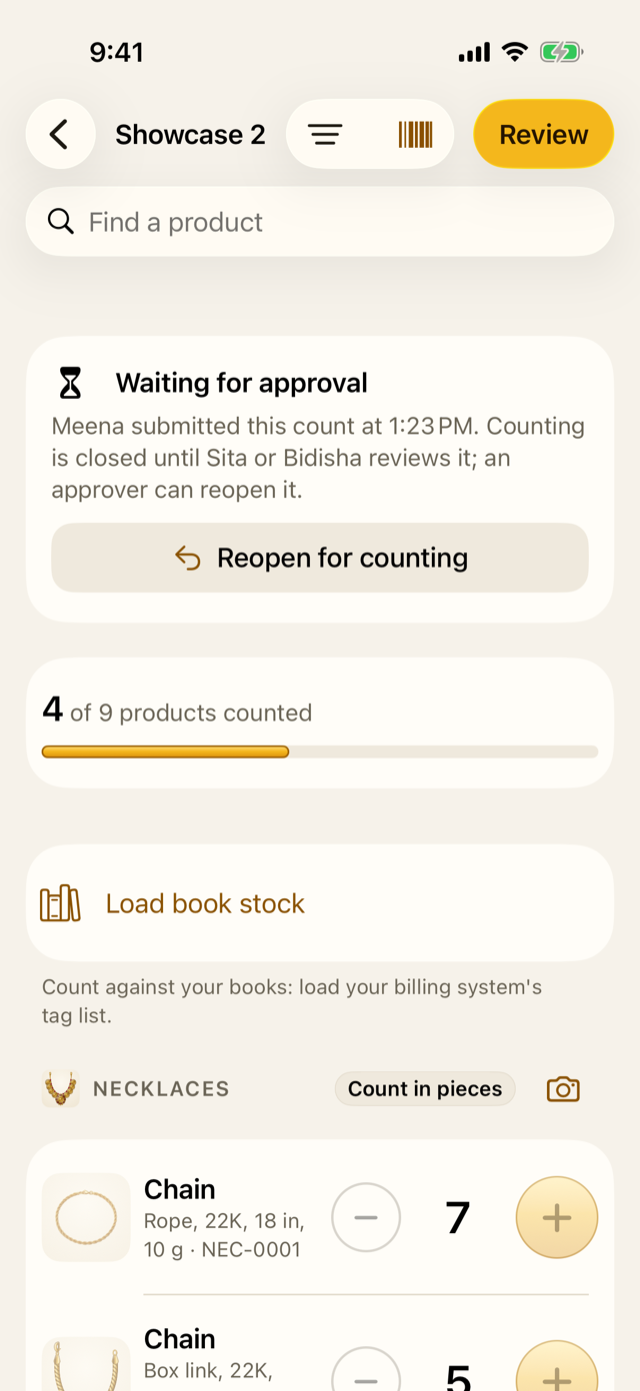
The counting screen lists the products in the count, grouped by type. The card at the top shows how far you’ve got, such as “4 of 9 products counted”.
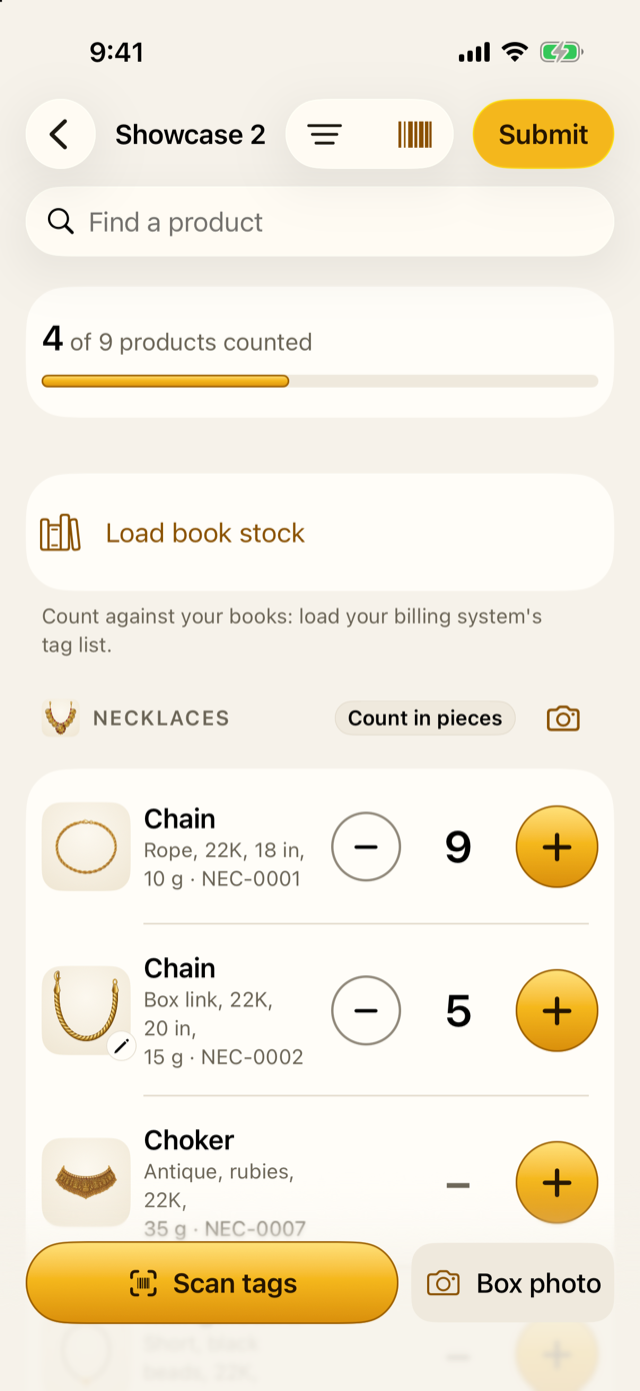
Each product has three controls:
- + adds one. Tap it once for each piece, pair or set as you pick it up. It sits on the right, under your thumb.
- − takes one away, if you tapped once too often.
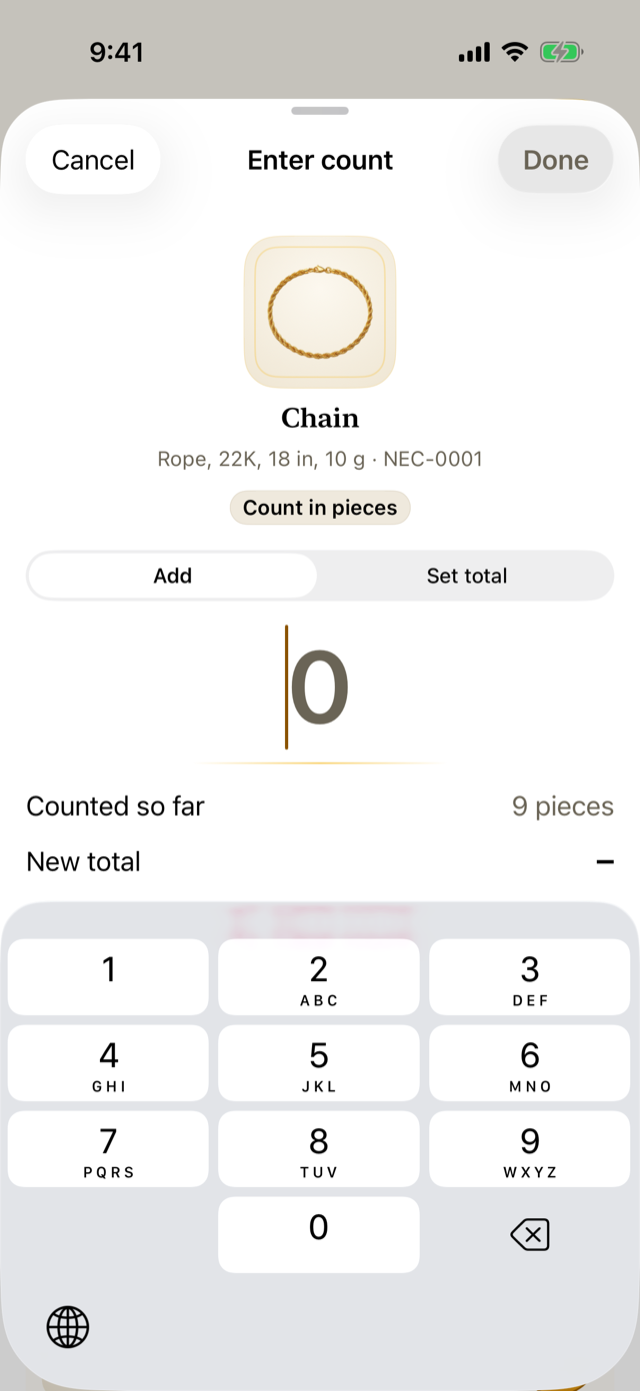
- The number shows your count. A dash (–) means the product hasn’t been counted yet. Tap the number to type a count instead.
When you tap the number, choose Add to add to what you’ve counted so far (useful when you count tray by tray), or Set total to type the whole count. The sheet shows the count so far and the new total before you tap Done. For earrings, the sheet also has Singles, “An earring with no mate”: enter an odd single there, never as a pair (Chapter 1).
Two quick actions are hidden behind a swipe on a product:
- Swipe right for None here, when you’ve looked and there are none. This counts 0, which is different from not counting it at all.
- Swipe left for Clear, to take your count off and start again. It’s there once you’ve counted the product yourself.
A swipe only shows the button: you still have to tap it. That way a stray swipe while your other hand holds a tray never changes a count.
Put a mistake right
After any change of more than one, and after every Clear, a bar at the bottom offers Undo for a few seconds. It says what changed, such as “Chain set to 7 pieces, was 9 pieces.” Tap Undo to put the count back exactly as it was.
Find a product quickly
Type in Find a product to search by name, SKU or barcode. The filter button at the top shows only the products Not counted, or only those Counted, which helps you check nothing was missed.
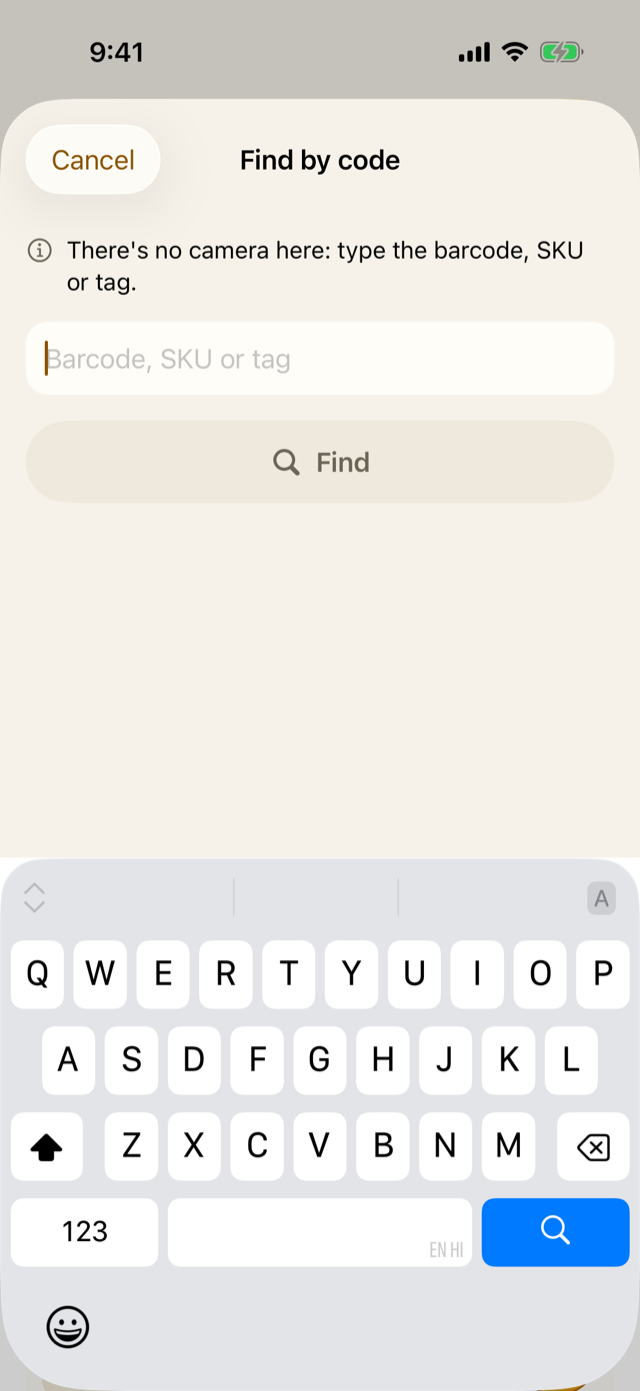
To find a product from its label, tap the barcode button, Find by code. Scan or type a barcode, a SKU or a piece tag, and the list shows only that product’s row. Finding a product never counts it: you still tap +.
The buttons at the bottom, Scan tags and Box photo, count a whole tray or box at once. Chapter 9 explains them.
Submit the count
When you’ve counted everything, tap Submit (it stays greyed out until something is counted). The app checks that you mean it. If pieces in box photos are still to identify, it offers Identify now or Submit anyway (Chapter 10).
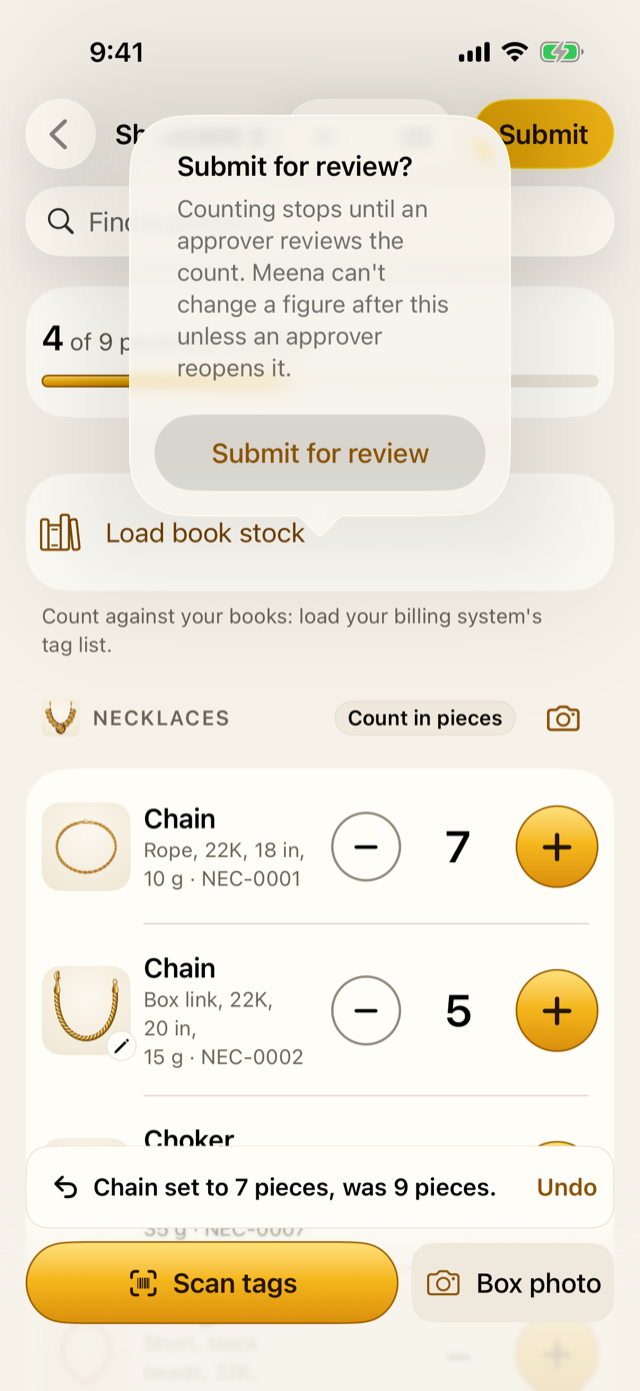
After you submit, counting stops and the count waits for an approver. Nobody can change a figure unless an approver who didn’t count in it, or the owner, taps Reopen for counting and gives a reason.
8.3 Why it works this way
- One hand is enough. Counting happens with a tray in the other hand. The
- is large and stays at the right edge, under the thumb, and the phone gives a small tap of feedback with every change.
- No swipe changes a count by itself, for the same reason.
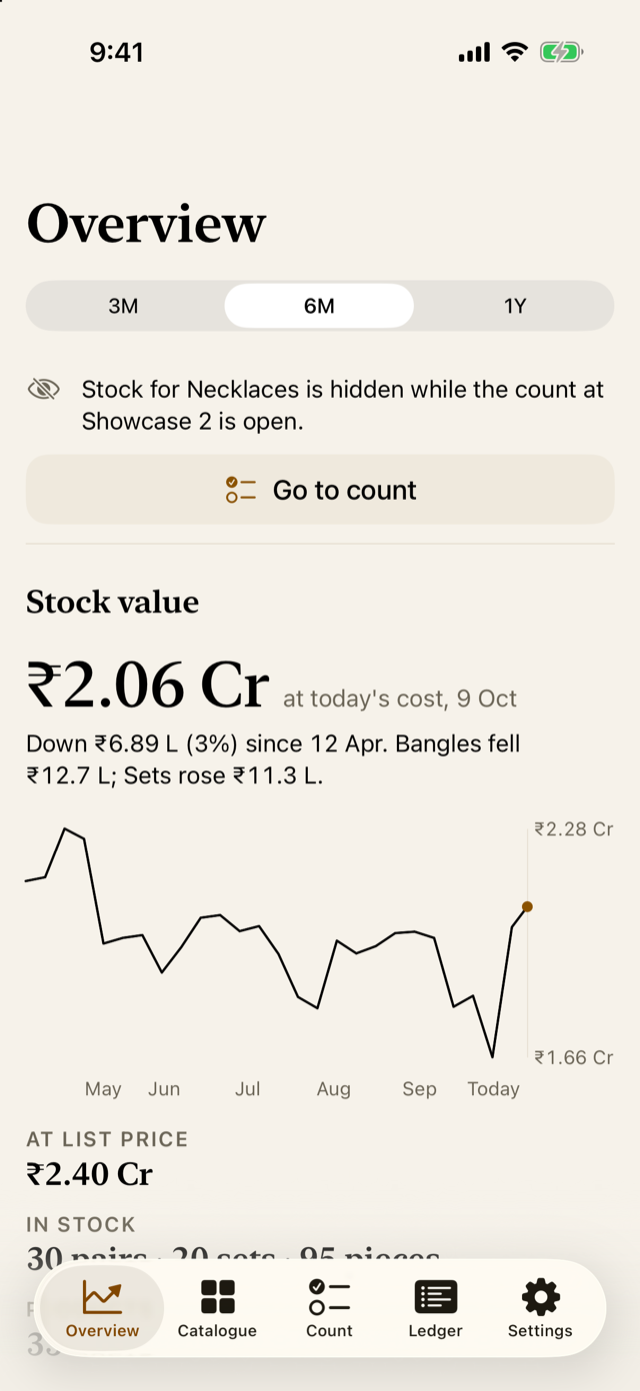
- Nothing shows stock while you count. Not the counting screen, and not the rest of the app either: the Catalogue shows “Being counted” for the types in an open count, and the Overview leaves them out, with a note at the top.
- None here is not the same as not counted. “None here” says you looked and found nothing. A product left with a dash wasn’t counted, and keeps its stock unless the approver decides otherwise.
- Submitting stops counting so that the approver reviews a count that can’t change under them.
8.4 How it works
Your count is saved with every tap, together with who entered it and when. The activity log records each figure, so if several people count, it’s clear who counted what. Pieces counted from box photos or tag scans add to the same number as your taps; Chapter 9 explains how the two are kept apart.
When you submit, the count waits under In progress in the Count tab, marked “Waiting for approval”. An approver then reviews it, as Chapter 3 explained.
8.5 Try it
The demo’s open count is at Showcase 2. It covers the necklaces: 9 products. So far, 4 have been counted:
| Product | Counted | Counted at |
|---|---|---|
| Chain, Rope, 22K, 18 in, 10 g | 9 pieces | 09:02 |
| Chain, Box link, 22K, 20 in, 15 g | 5 pieces | 09:05 |
| Pendant, Diamond heart, 18K | 3 pieces | 09:08 |
| Mangalsutra, Long, 22K, 20 g | 2 pieces | 09:11 |
The other 5 still show a dash.
Question. You’ve counted 3 rope chains on the showcase, then find 2 more in the drawer below. What’s the quickest way to record them, and what will the app show?
TipAnswer
Tap +, twice. Or tap the number, choose Add, type 2 and tap Done: the new total is 5, and because the count changed by more than one, the app offers Undo for a few seconds.
- Start a count from the Count tab, and choose where and what it covers.
- Tap + for each piece. Tap the number to type a count. Swipe for None here or Clear, then tap.
- Undo is offered after a change of more than one, and after every Clear.
- Submit when you’re done; after that, only an approver who didn’t count, or the owner, can reopen the count.