10 Pieces to identify later
For counters
- Why a box photo can be added before every piece in it is identified.
- How to identify pieces from the To identify queue.
- Why the count can’t be completed until every piece is identified, and why only counters identify.
10.1 The idea
When a box’s pieces carry tags, Jholok knows each piece’s product from its tag (Chapter 9). In a box with no tags, a photo can still find the cards and count them, but it doesn’t know which design is on each card. Someone has to say.
Doing that piece by piece in the box review is slow: often slower than counting by hand. So Jholok lets you add the box first and identify its pieces later, from one list, the To identify queue.
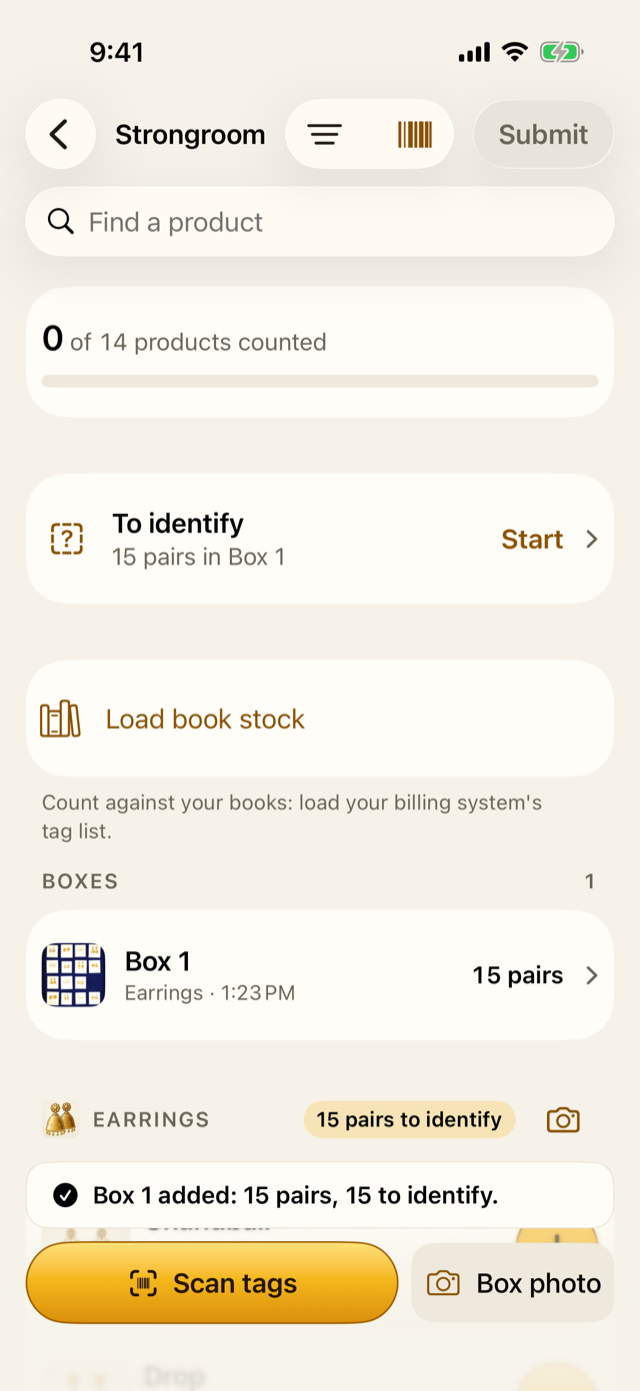
Until a piece is identified, it counts in the box but in no product. The box adds “15 pairs”, but no product’s count goes up for that piece yet. And the count can’t be completed until every piece is identified, or marked as not in the catalogue. That way, no product is ever called short just because nobody said which pieces were its.
10.2 In the app
Add the box
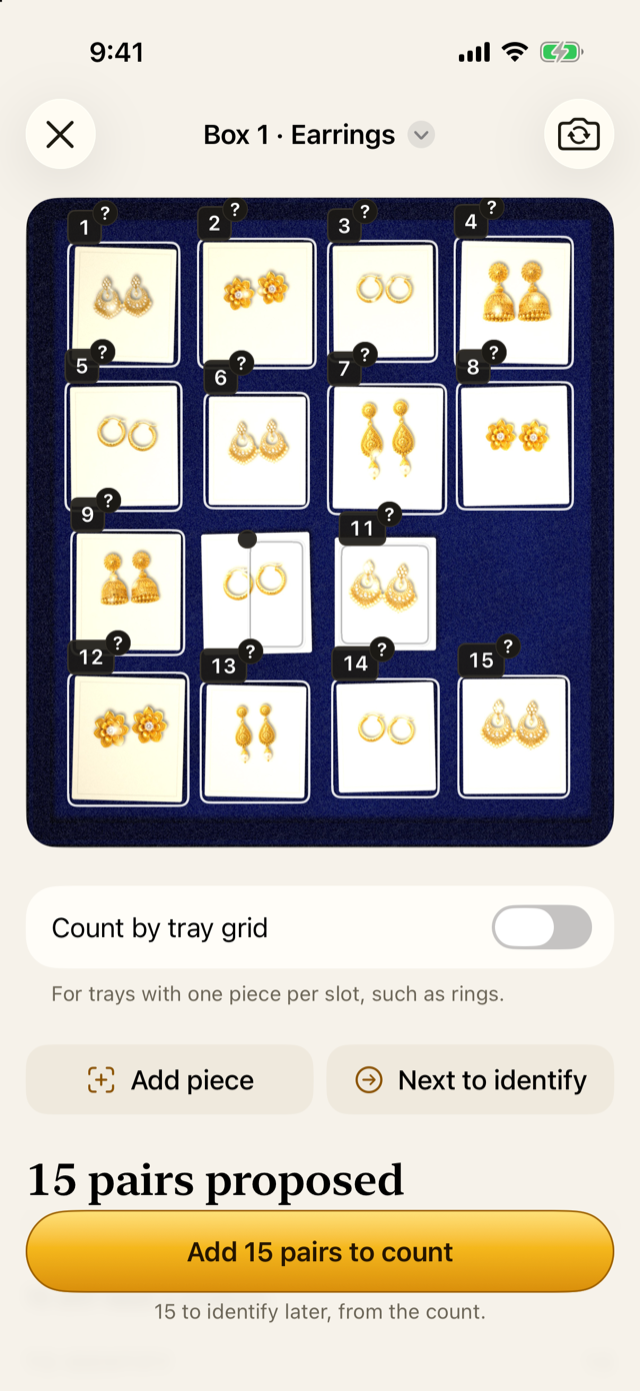
In the review of an untagged box, every piece without a product is marked for identifying later. The gold button still adds the box, and the note under it says how many pieces are left: here, all 15.
Tap Add 15 pairs to count. The count now shows a To identify row at the top, and the type’s heading says how many of its pieces are waiting.
Identify each piece
Tap the To identify row. The queue shows one piece at a time.
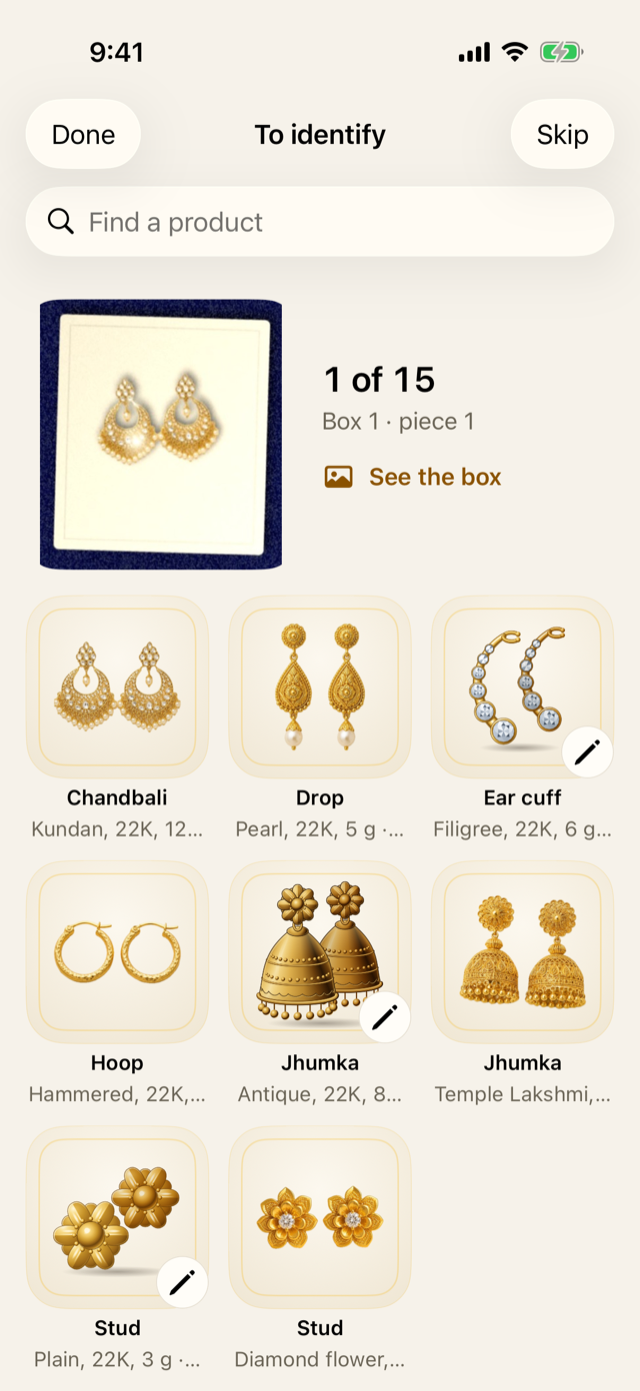
- At the top: the piece’s picture, how many are left (“1 of 15” means 15 still to identify), and which box and piece it is. See the box shows the whole photo with this piece outlined, so you can find it in the tray.
- Below: a search field, then picture matches (the products whose photos the piece looks most like), then every product of the box’s type, as pictures. Picture matching compares with product photos only, so products need photos for it to help.
- Tap the product the piece is. The queue moves to the next piece.
- Skip leaves a piece for later. When the rest are done, the queue says how many you skipped; tap Start again to go back to them.
- Not in the catalogue, at the bottom, is for a design the shop has no product for. The piece is left out of the count, and the count’s result and report list it by box and piece number, so someone can add the product and count it later.
After you pick a product, if other pieces in the same box look the same, the queue offers them too, ticked: “These 3 in Box 1 look the same. Untick any that aren’t.” Untick any that differ, then tap Identify 4 as …, or Just piece 1 to identify only the first. Nothing is identified by its look alone: you always confirm.
Submit with pieces left
You can submit a count with pieces still to identify. The app offers Identify now first, and Submit anyway second, and says the count can’t be completed until they’re done. The approver’s Review then says how many pieces aren’t identified, and Complete stays off until they are. The approver reopens the count, with a reason, and a counter identifies them.
10.3 Why it works this way
- It’s quicker. One list for every box, one tap per piece, and lookalikes in one go, instead of opening each piece in each box.
- Unidentified isn’t missing. A piece nobody has identified still counts in its box. Completing the count with it would call its product short, so completing waits.
- Only counters identify, while counting. The approver can see what’s short. If the approver could say which product a piece was, a loss could be covered up by “finding” the missing product in a box. So the approver reopens the count, and a counter, who can’t see stock, identifies the pieces.
- The queue is blind. It shows pieces and products, never stock.
- A design not in the catalogue doesn’t block the count forever. It’s left out, and listed, so it gets dealt with.
10.4 How it works
Each identification is saved at once, with who made it and when, in the activity log. The piece’s product is set, and that product’s count goes up. Identified pieces also help picture matching: until the app is closed, a piece like it in another photo is suggested that product.
Lookalikes are found by comparing the pieces’ pictures with each other, never with the stock. This needs a real phone: on the test phones used for this guide’s screenshots, the queue never offers lookalikes.
Like everything about box photos, picture matching was tuned on drawn example boxes. How well it does on a real shop’s boxes hasn’t been measured yet: always check the product before you tap it.
10.5 Try it
This is the demo’s untagged box. Its pieces have no tags, so every piece is waiting to be identified.
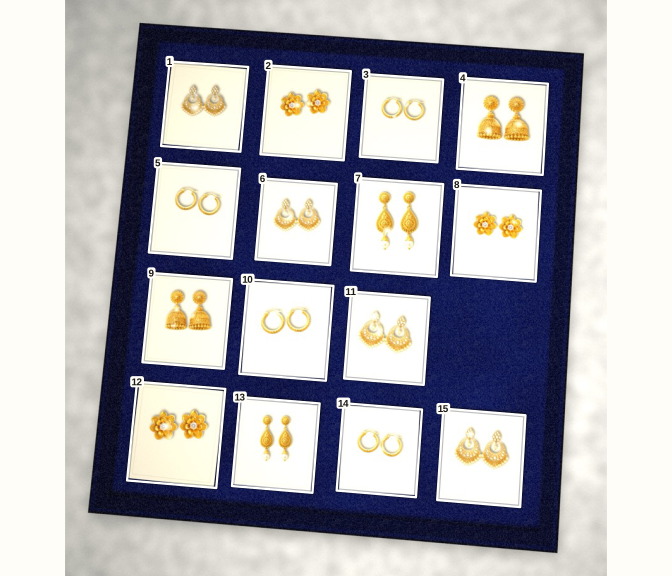
If every piece is identified correctly, the box adds these to the count:
| Product | Pairs |
|---|---|
| Chandbali, Kundan, 22K, 12 g | 4 |
| Hoop, Hammered, 22K, 15 mm, 4 g | 4 |
| Stud, Diamond flower, 18K, 0.20 ct | 3 |
| Jhumka, Temple Lakshmi, 22K, 14 g | 2 |
| Drop, Pearl, 22K, 5 g | 2 |
Several pieces share a design, such as the chandbali (Kundan, 22K, 12 g), with 4 pairs in this box. On a phone, identifying one of them may offer the others as lookalikes, if their pictures are close enough.
Question. A piece in the box is a design the shop bought last week but hasn’t added to the catalogue yet. What do you do?
TipAnswer
Tap Not in the catalogue. The piece is left out of this count, and the count’s result lists it by box and piece number. Then the owner adds the product to the catalogue, and the piece can be counted in the next count.
- An untagged box can be added before its pieces are identified.
- Identify them from the To identify queue: one tap per piece, and lookalikes together.
- A design with no product is marked Not in the catalogue, and listed.
- The count can’t be completed until every piece is done, and only counters, while counting, identify.